
Identity registration
Registration is done once and allows Klarway to verify your identity before each exam. Follow the three steps below.
- 1
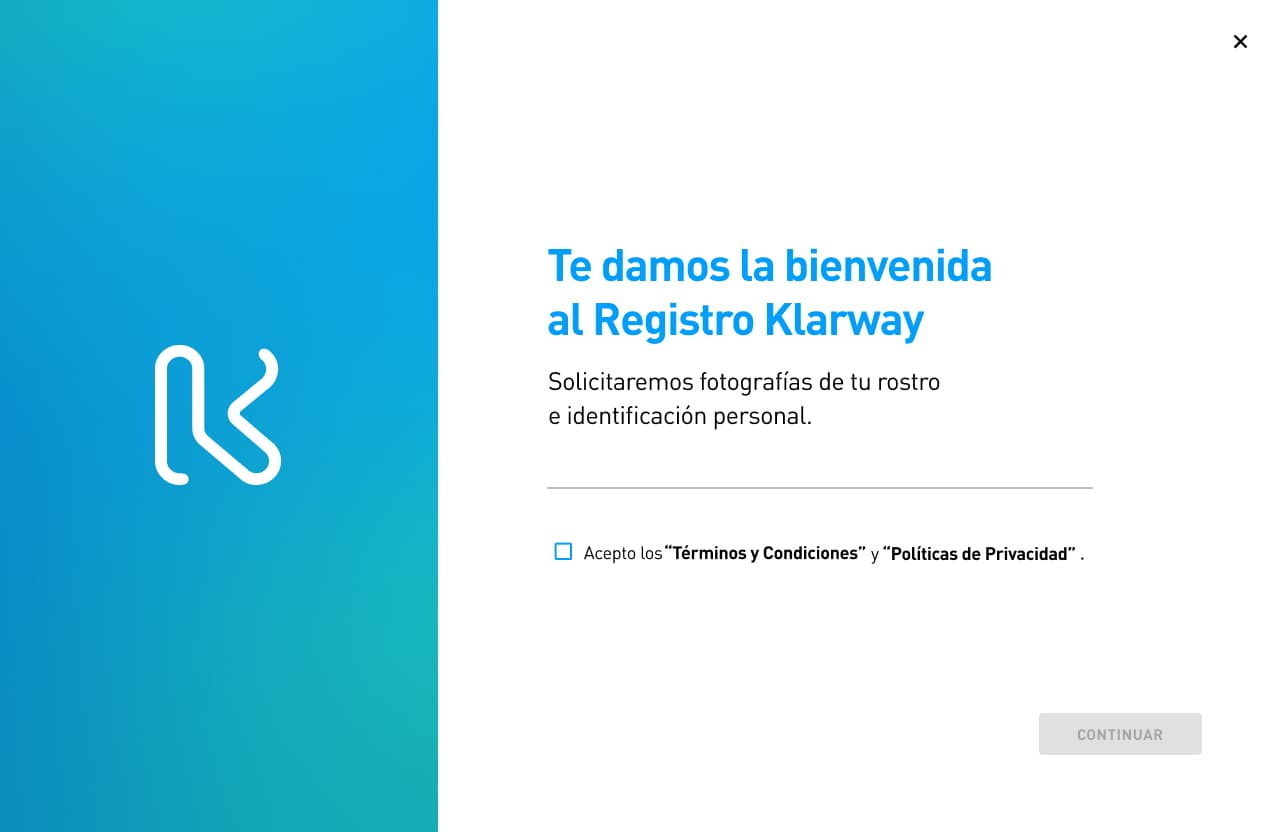
Accept the Terms and Conditions
Read and accept Klarway's "Terms and Conditions" and "Privacy Policy". Once accepted, click Continue to proceed to the next step.
These documents describe how your information is processed and protected.
- 2
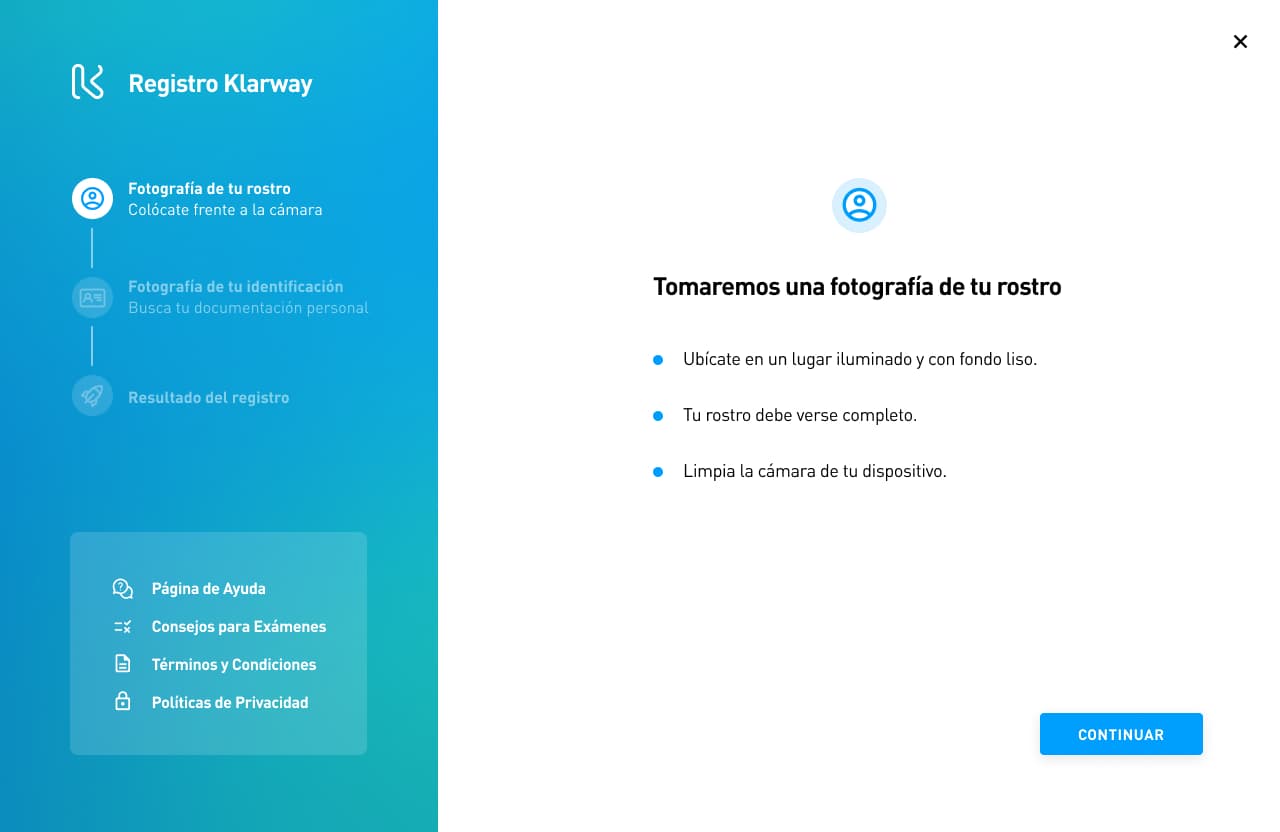
Facial photograph
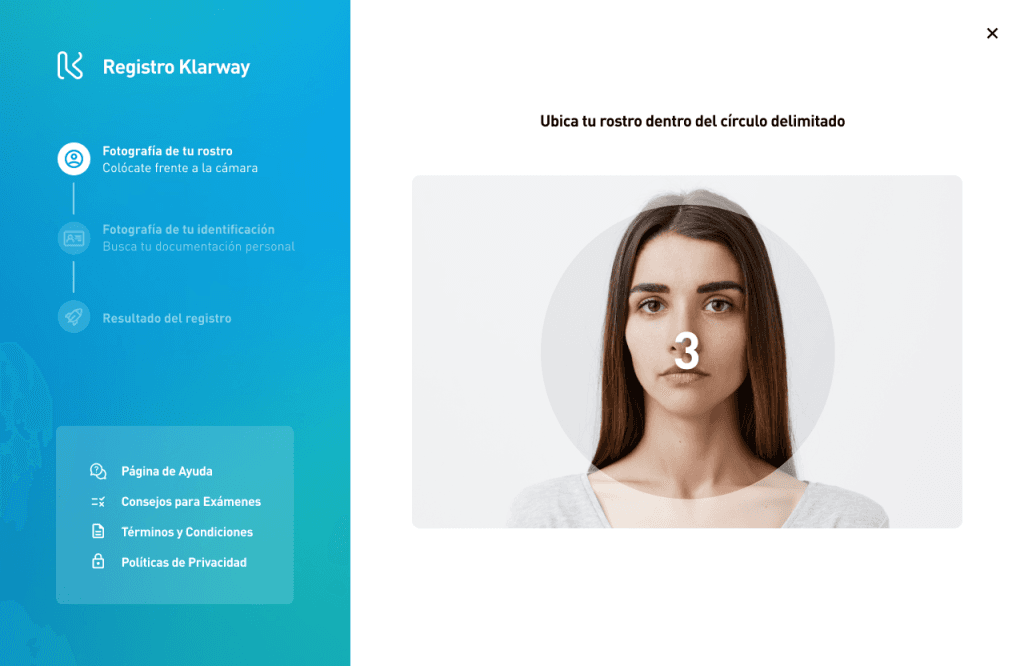
You will be asked to take a photograph of your face using your device's camera.
Recommendations
- Position yourself in a well-lit place, without backlighting.
- Look directly at the camera.
- Remove glasses, hats and accessories that cover your face.
- Make sure your face is fully visible and centered.
- Clean the camera lens if the image is blurry.
- 3
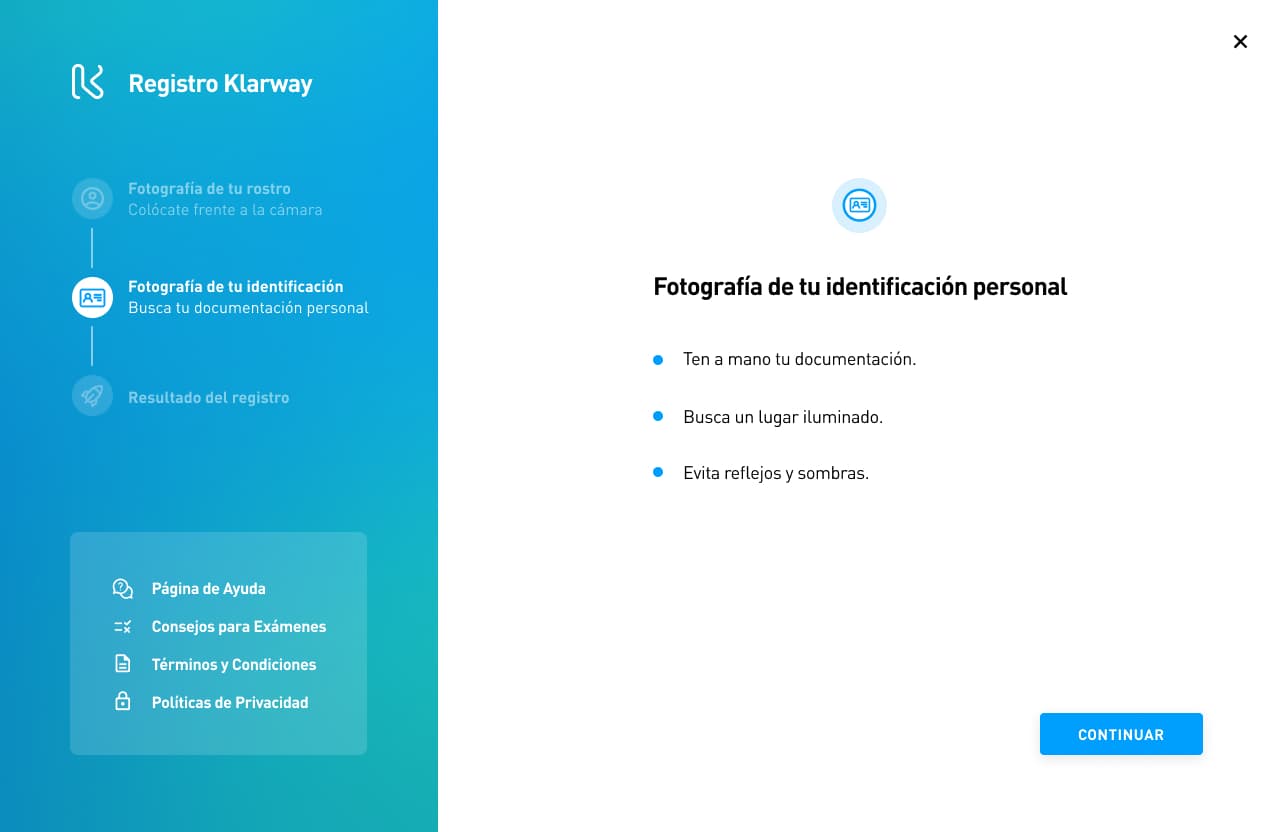
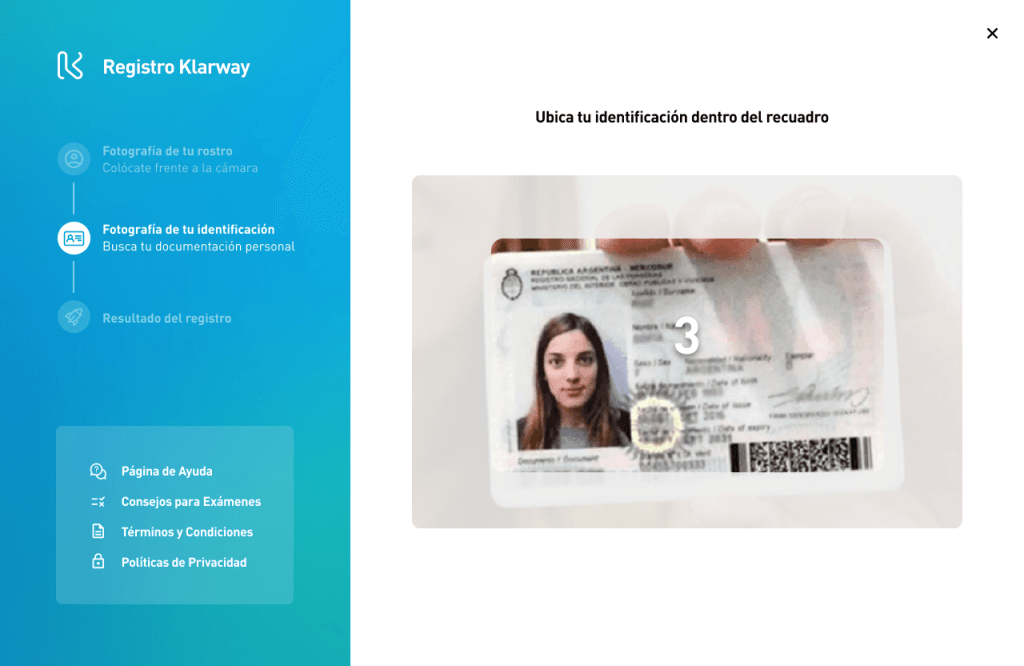
ID document photograph
Take a clear photo of your personal identity document (national ID, passport or institutional credential).
Recommendations
- Make sure the background is clear and without other background images, such as pictures.
- Make sure all data is legible.
- Avoid shadows on the document.
- If the first attempt fails, try another valid document (passport or driver's license).
What can the result be?
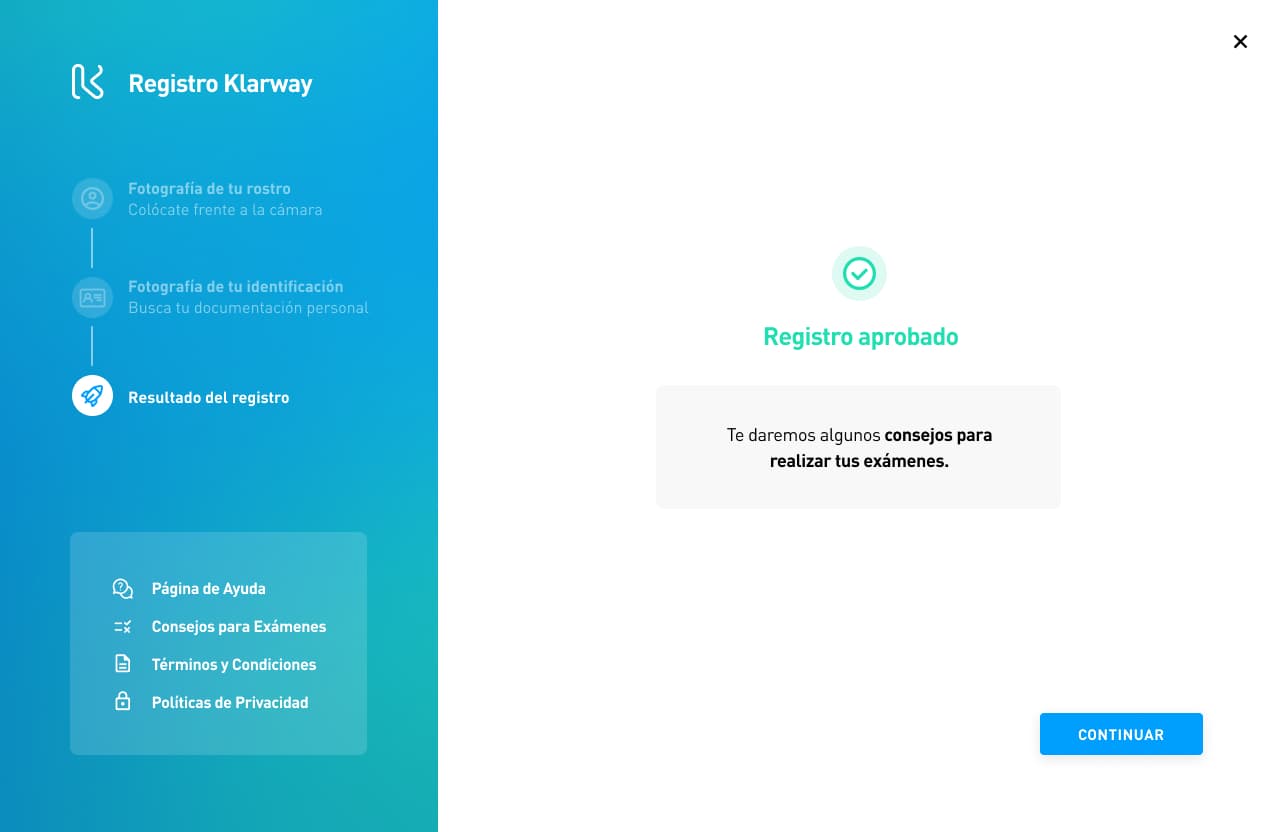
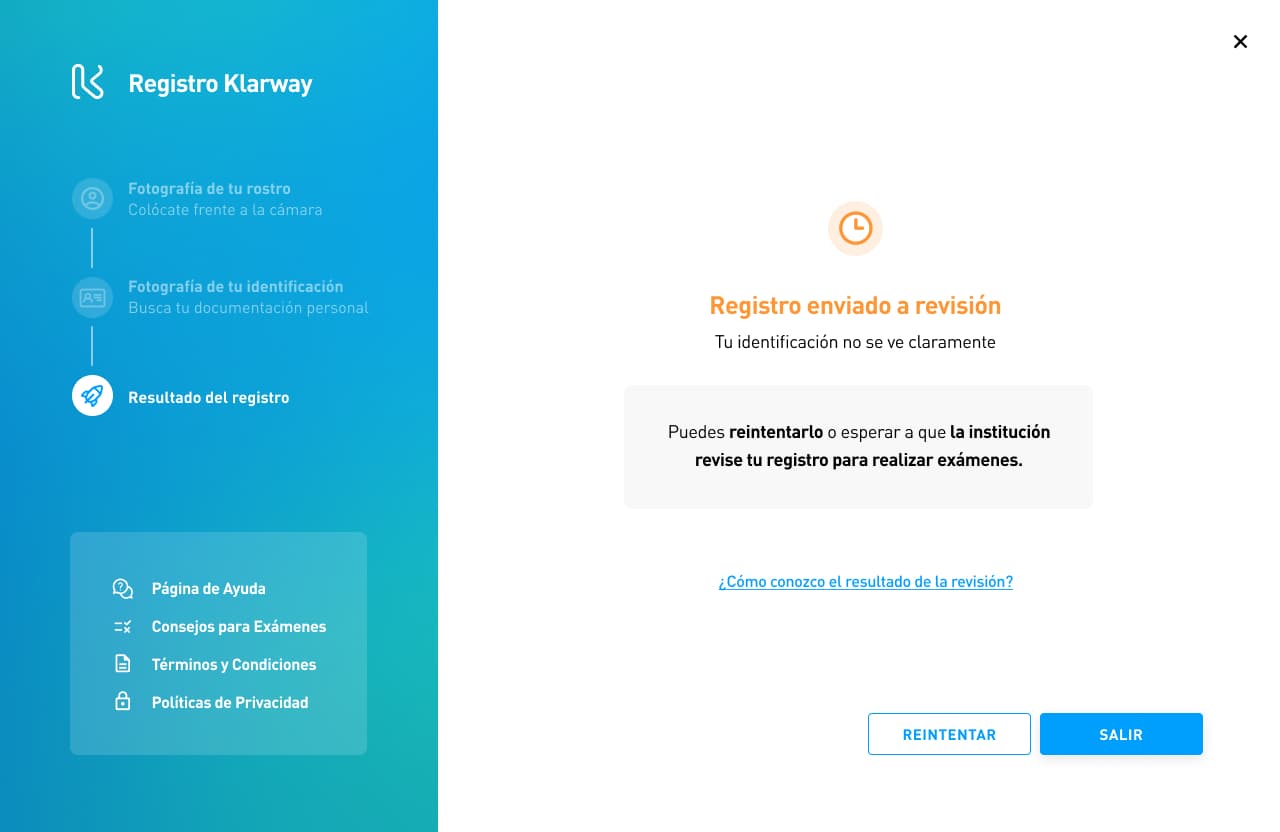
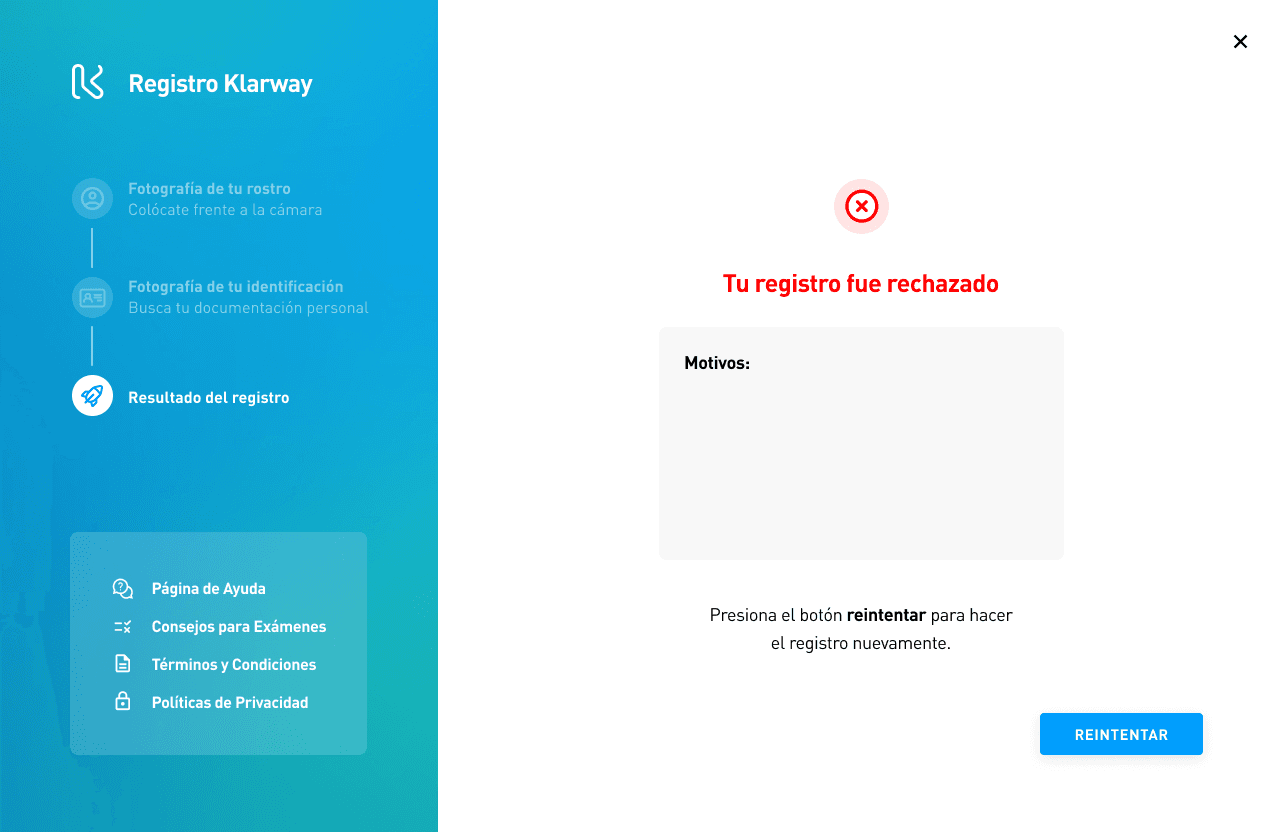
Once the process is complete, your registration can be in one of these three states.
If your identity was successfully validated, registration is automatically approved. You can now access your exams.
The system could not validate your identity automatically. Your registration is being reviewed manually by your institution.
Your institution rejected the registration. Redo the process with correct information, clear photos and a well-lit environment.
⚠️ Need to update your registration data? Contact your institution's help desk — they are the ones who can authorize the change.