Windows · Step-by-step guide
Camera and microphone permissions
Enable microphone and camera permissions for Klarway from the Windows Privacy & security settings.
Enable microphone permission
- 1
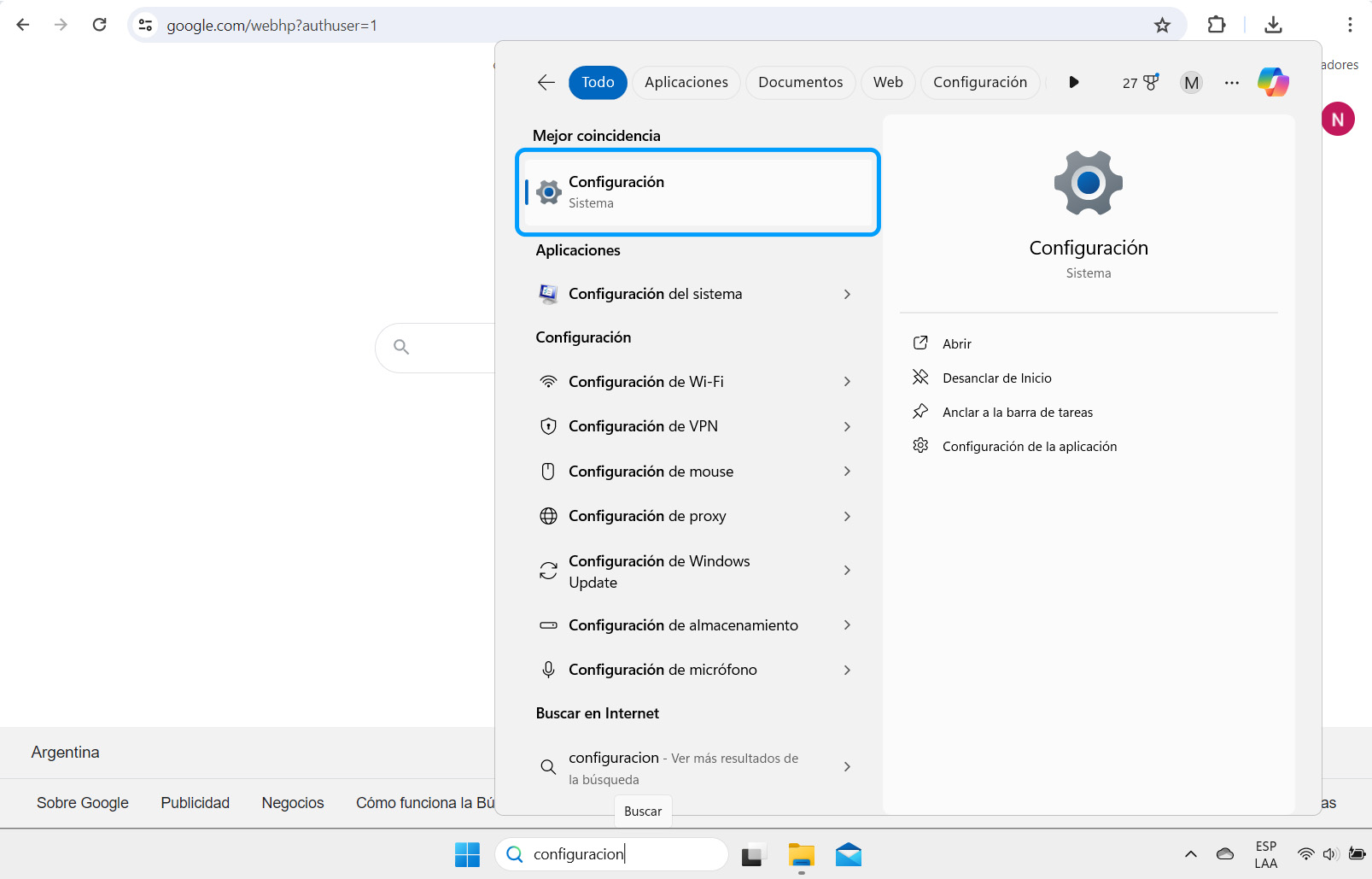
From Start, select "Settings".
- 2
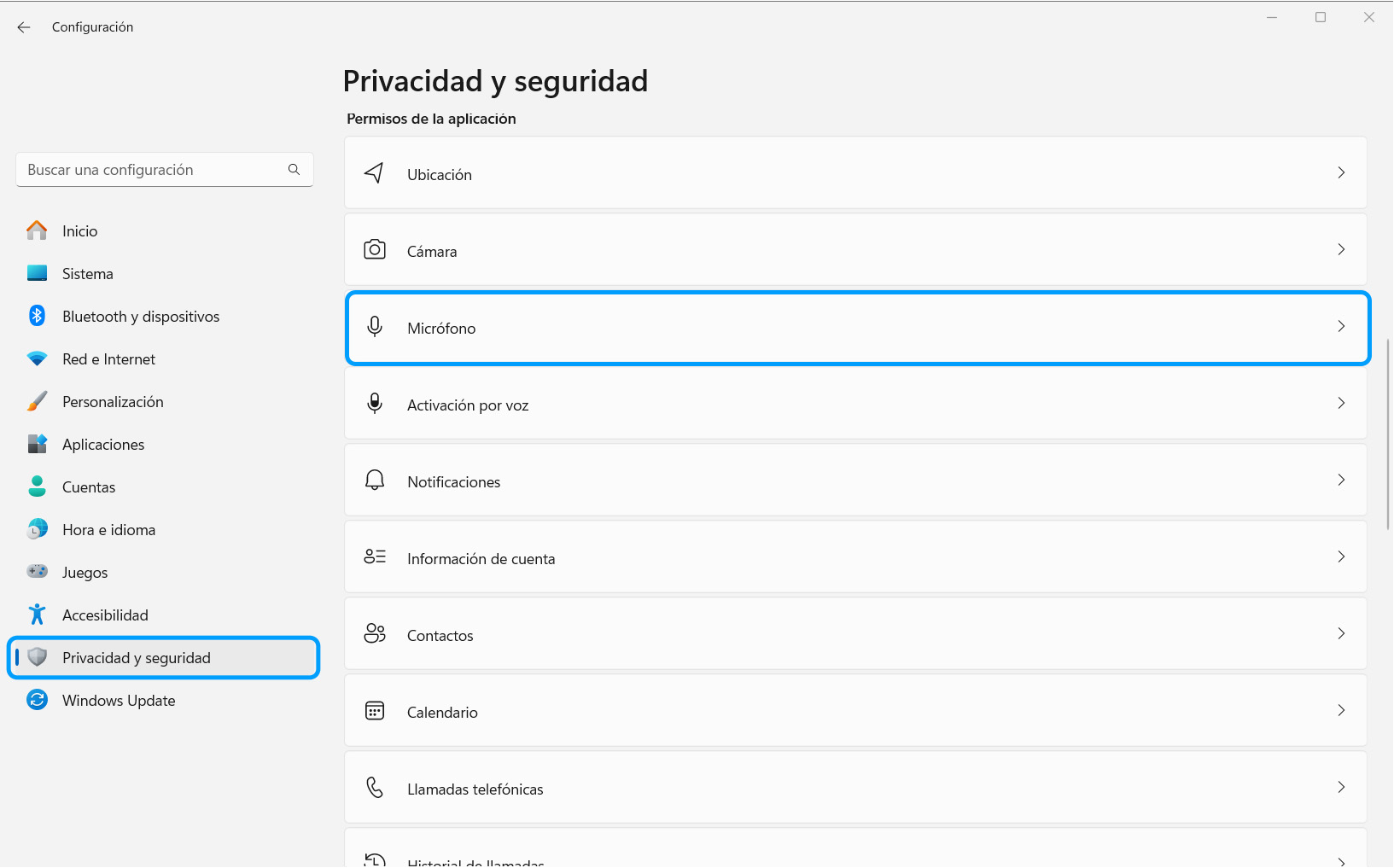
Go to "Privacy & security" and select "Microphone".
- 3
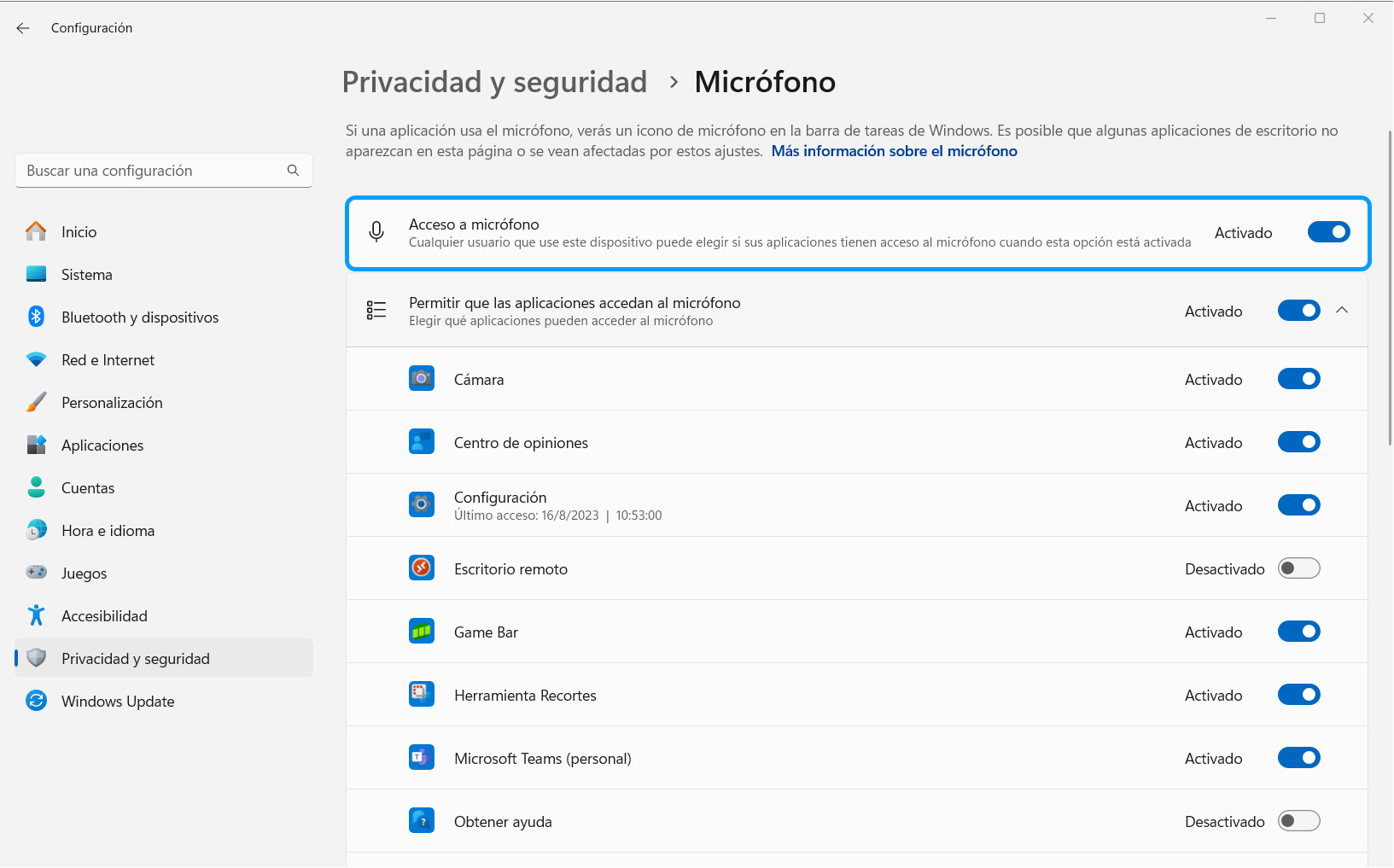
Make sure "Microphone access" is turned on.
- 4
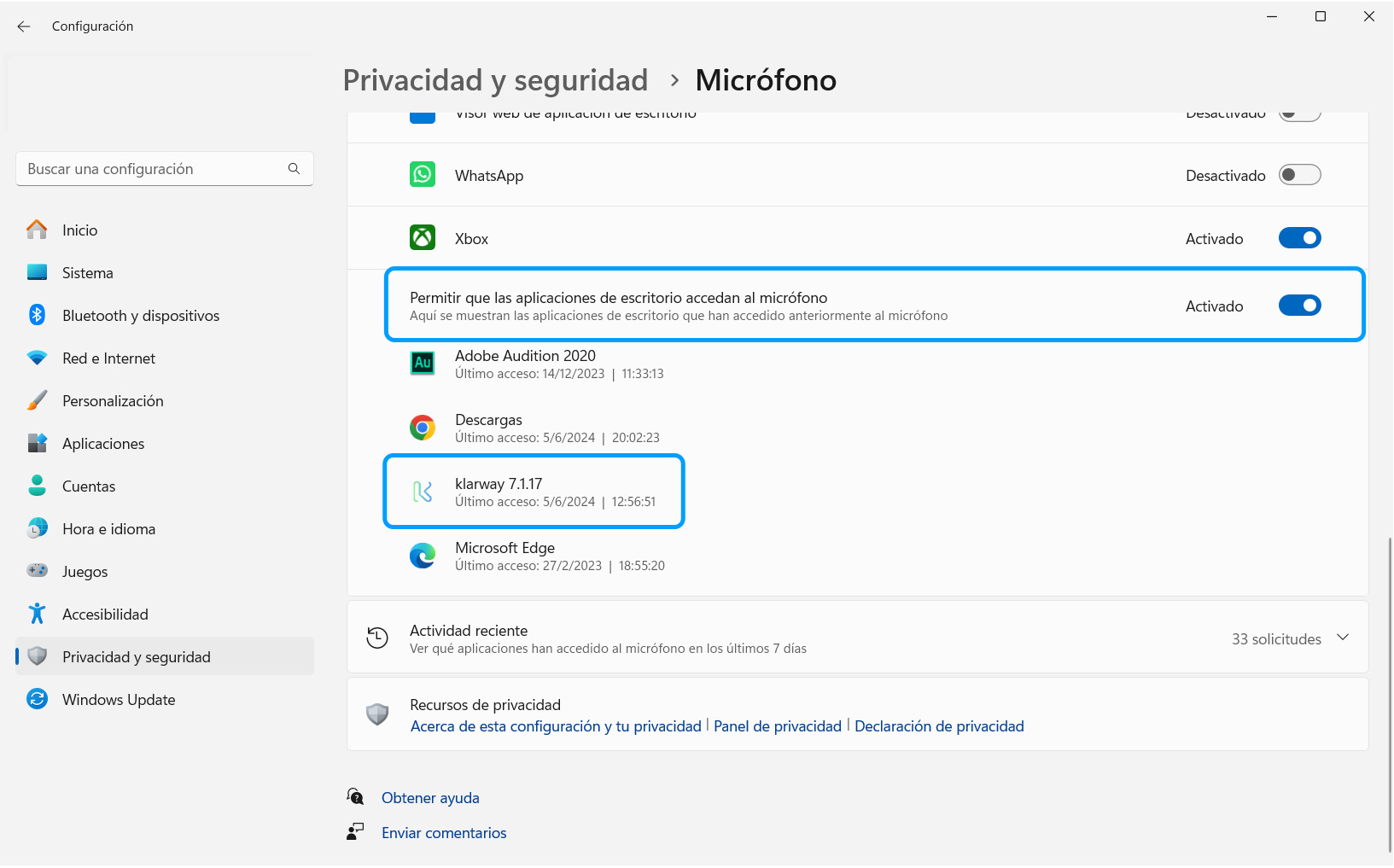
Finally, enable permission for the Klarway application.
Enable camera permission
- 1
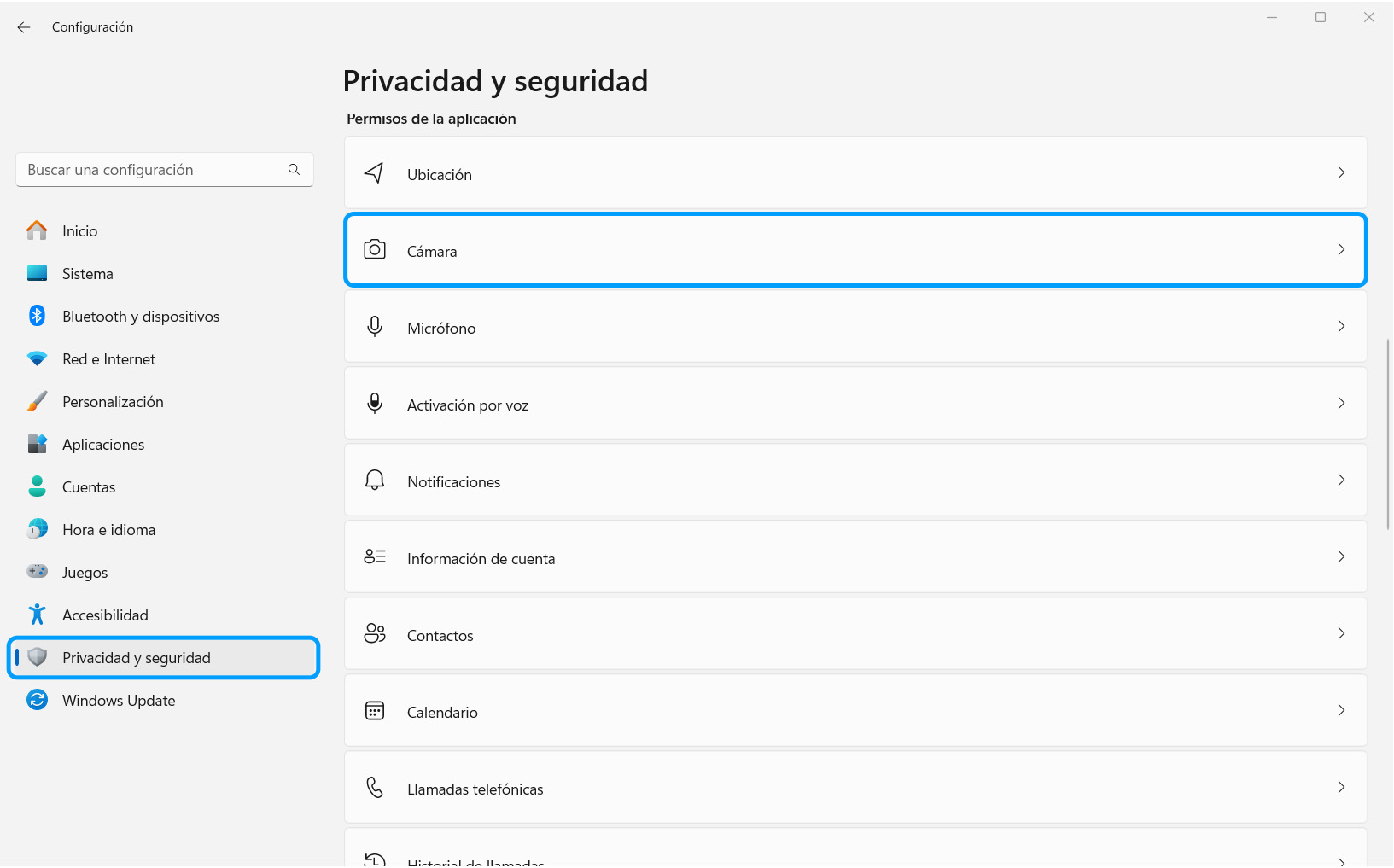
Go to the "Privacy & security" section and select "Camera".
- 2
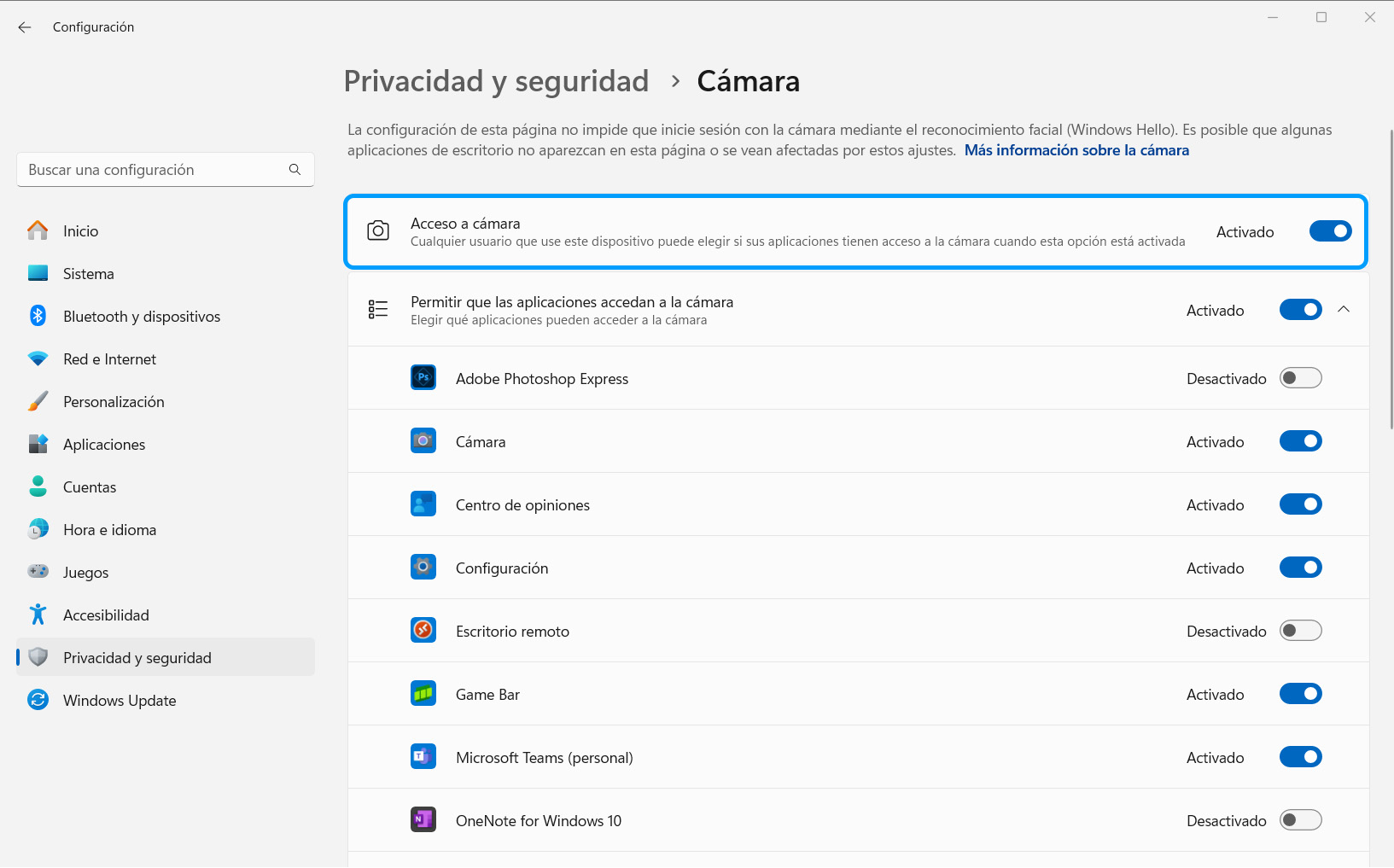
Make sure "Camera access" is turned on.
- 3
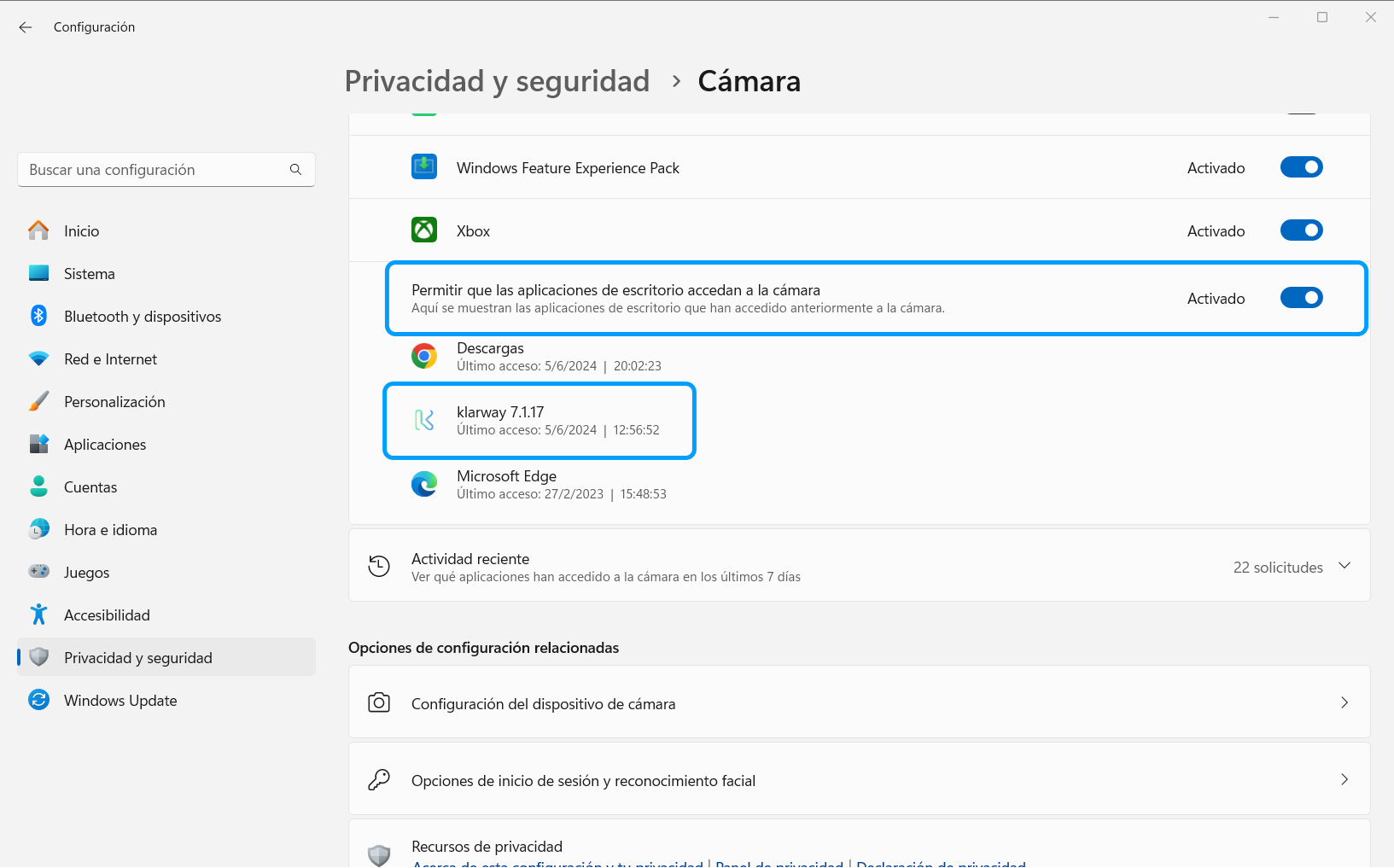
Finally, enable permission for the Klarway application.