macOS · Step-by-step guide
Camera, microphone and screen recording permissions
When you open Klarway for the first time on Mac, the system will request access to the camera, microphone and screen recording. Follow these steps to enable them.
Camera and microphone
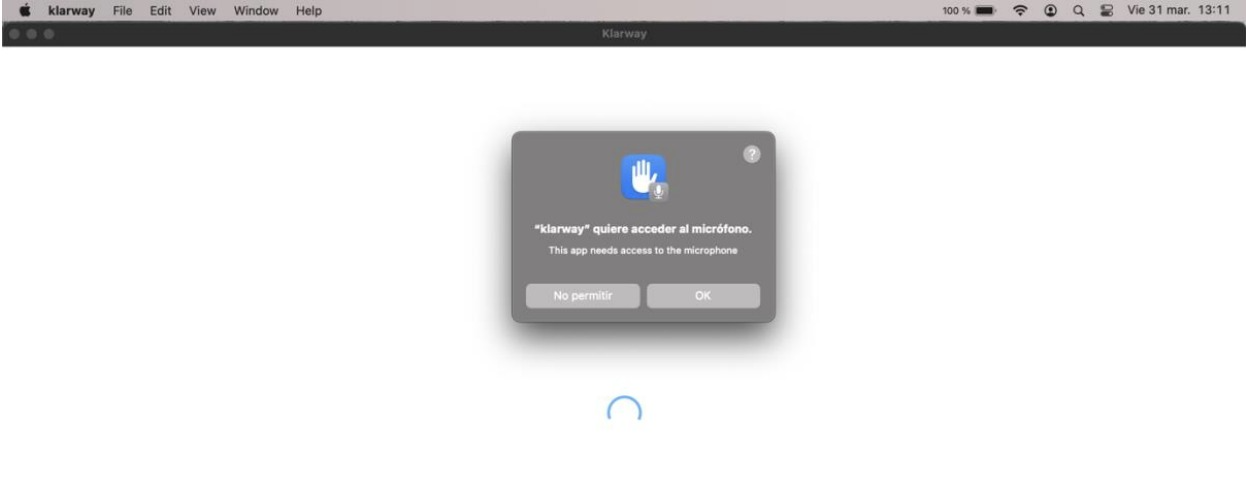
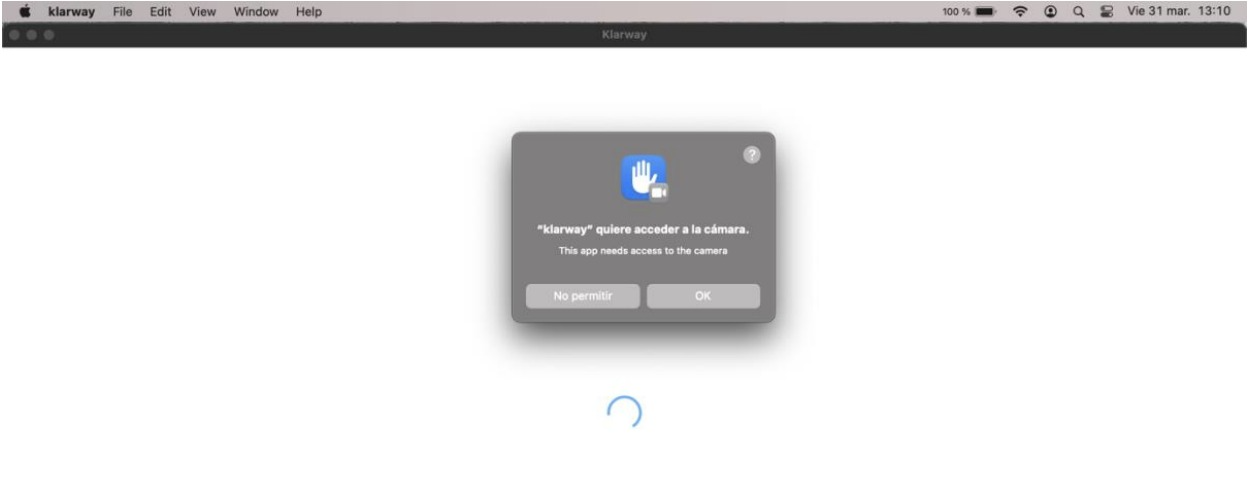
When you open Klarway for the first time, the system requests permissions. Accept camera and microphone access by clicking "OK".
Screen recording
- 1
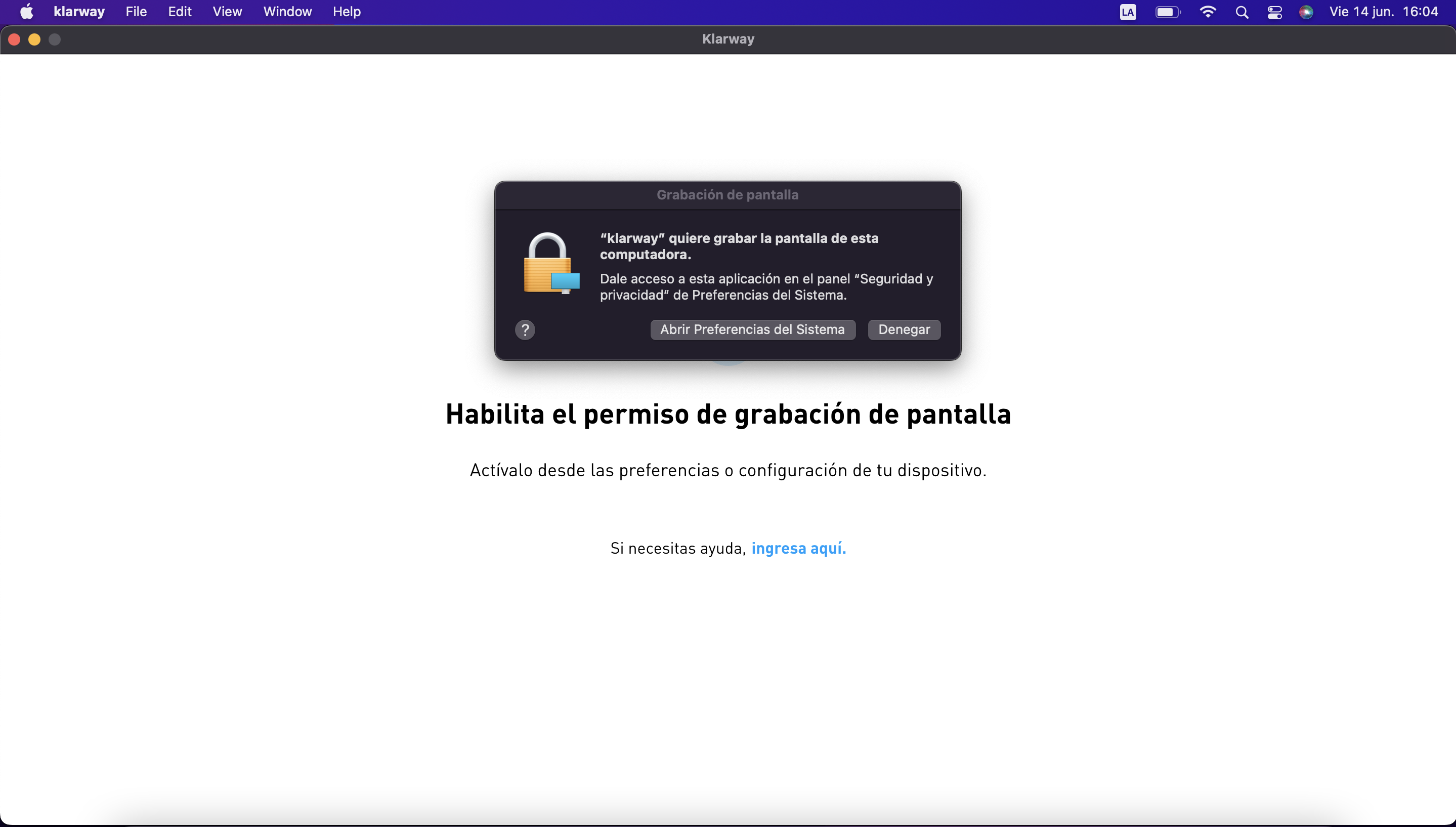
Enable screen recording permission via "System Preferences" by clicking "Open System Preferences".
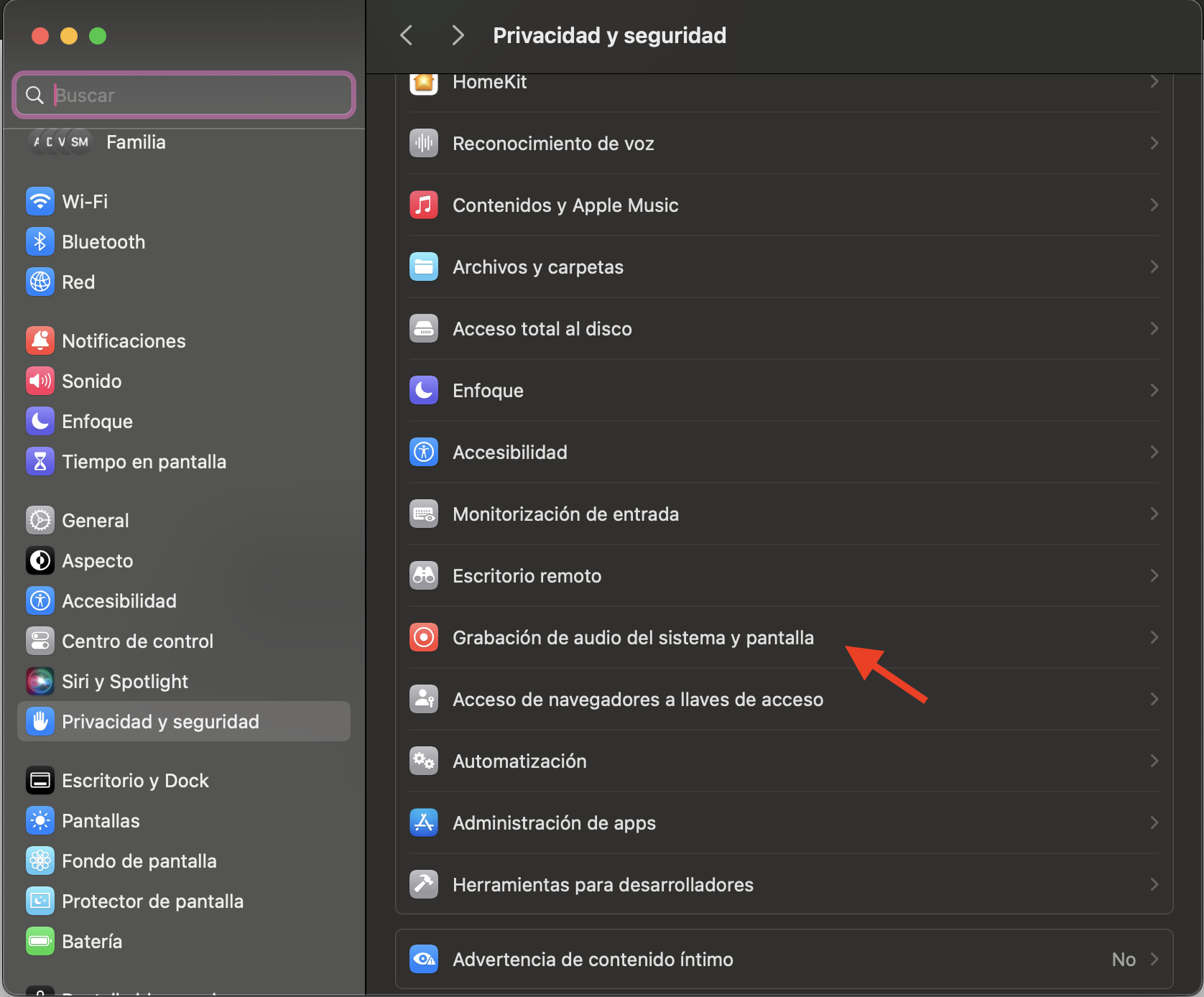
- 2
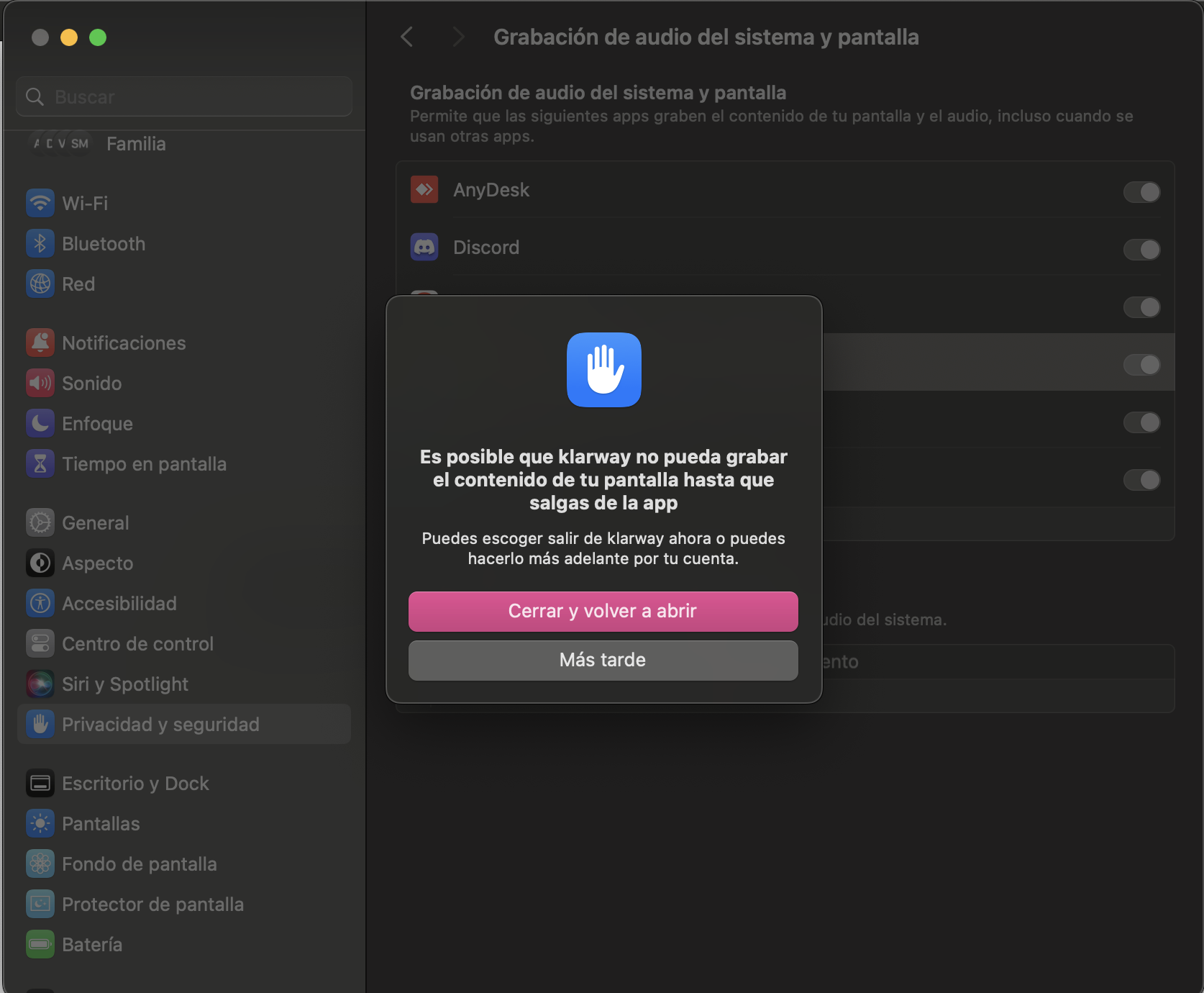
Navigate to "Privacy & Security" and select the "Screen Recording" section.
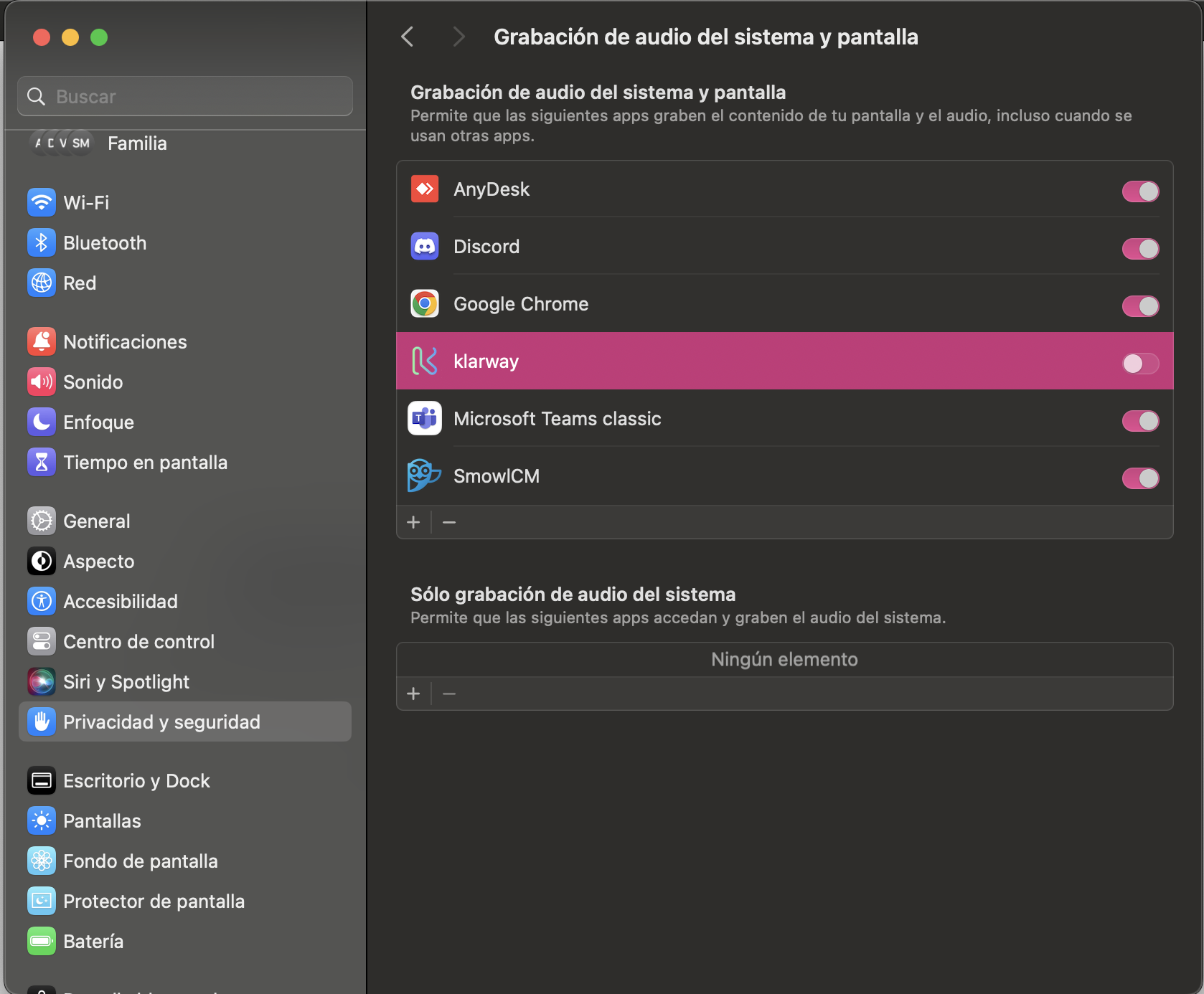
- 3
Enable the Klarway permission. When prompted, enter your password to confirm the change. Select to close and reopen the application.