
Taking an exam with the extension
Follow these six steps to access and complete your exam using the Klarway extension for Google Chrome.
- 1
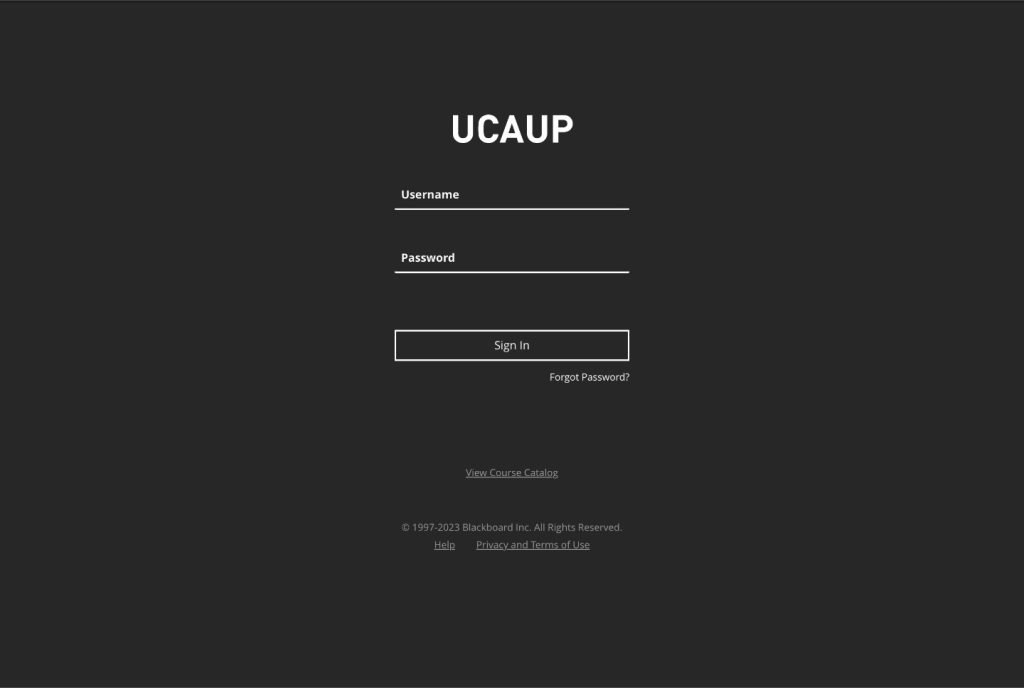
Log in with your username and password
Access the platform with your credentials and find the exam you need to take.
If you have trouble logging in, check with your educational institution.
- 2
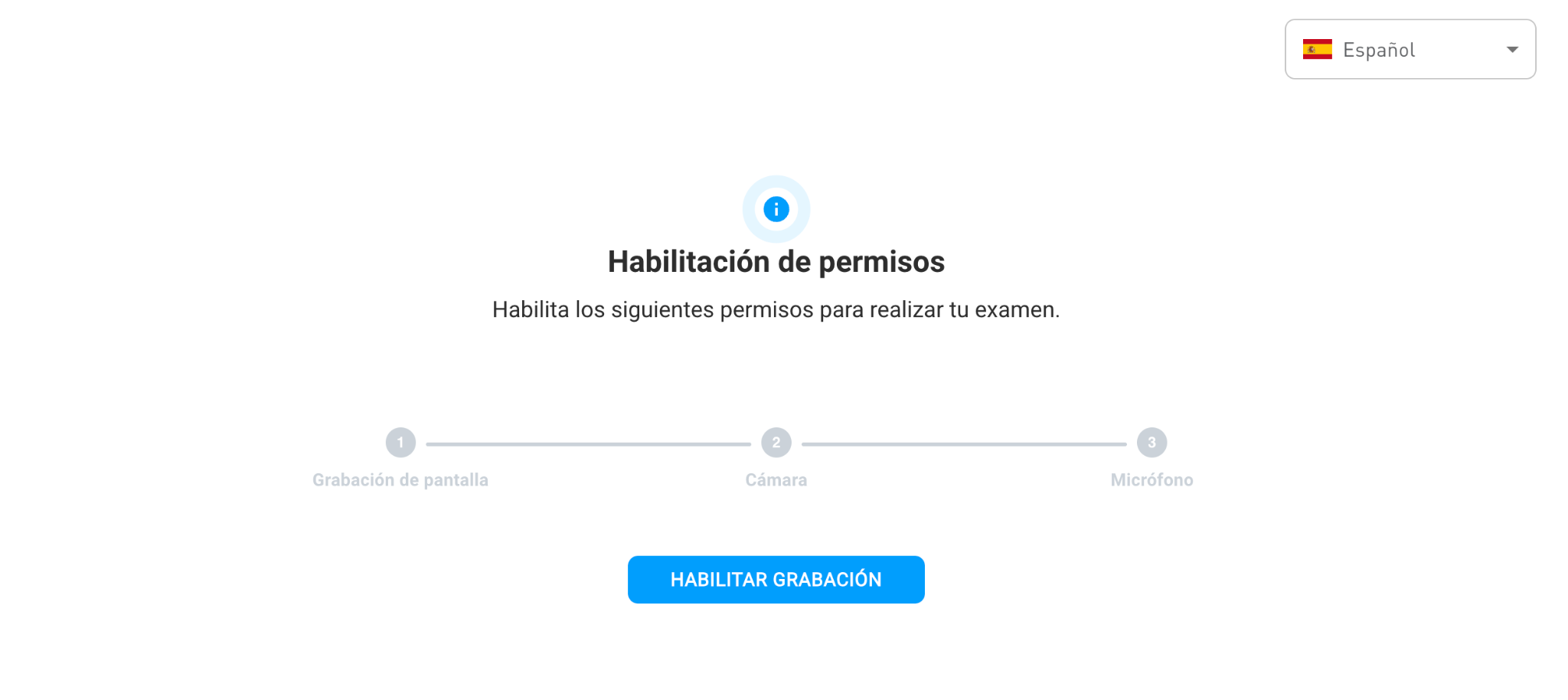
Grant permissions to Klarway
The system will ask you to authorize access to the camera and microphone in order to start the exam.
- 3
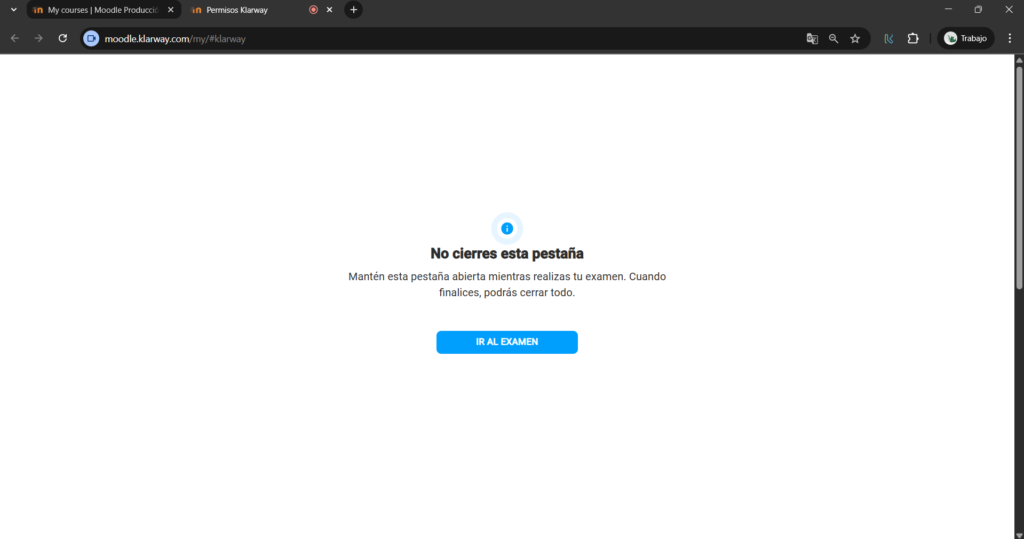
Click «Go to exam»
Once permissions are granted, click the «Go to exam» button to access your evaluation.
Do not close this tab while taking your exam.
- 4
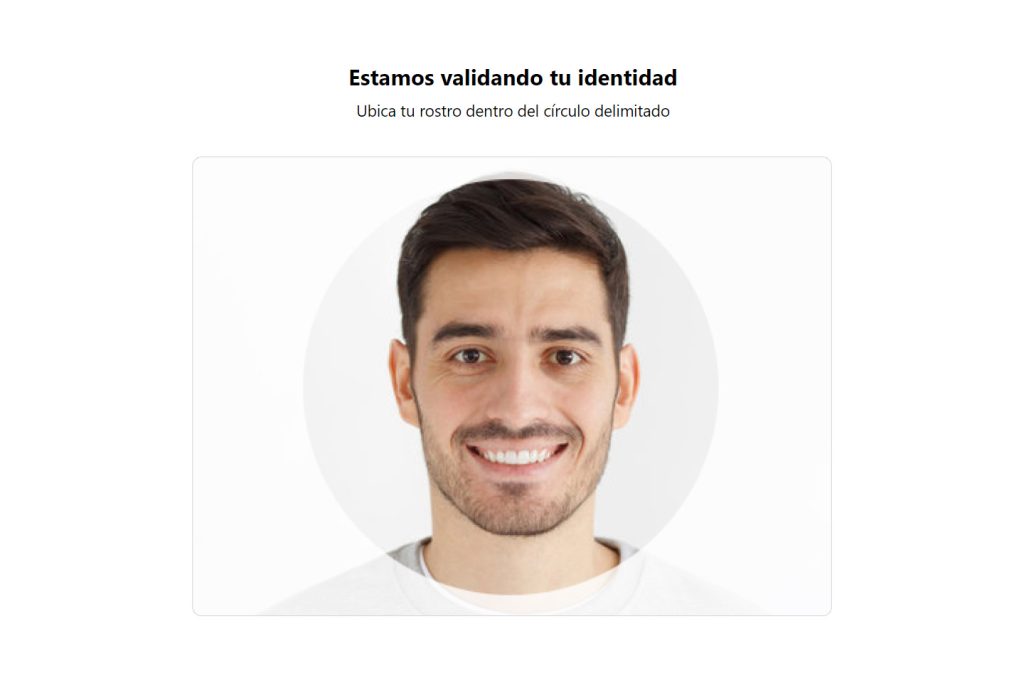
Validate your identity
When accessing the exam, the system will validate your identity against your registration by taking a photo of your face.
- 5
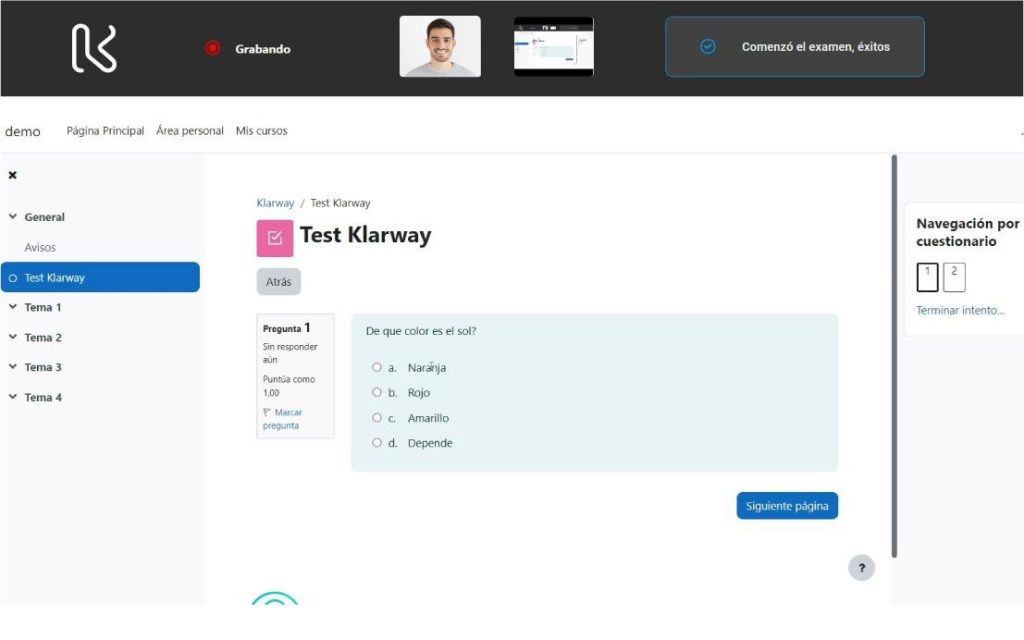
Take the exam
Once the exam is open, you can take it normally. Klarway will only monitor that instance.
- 6
Finish and wait for upload
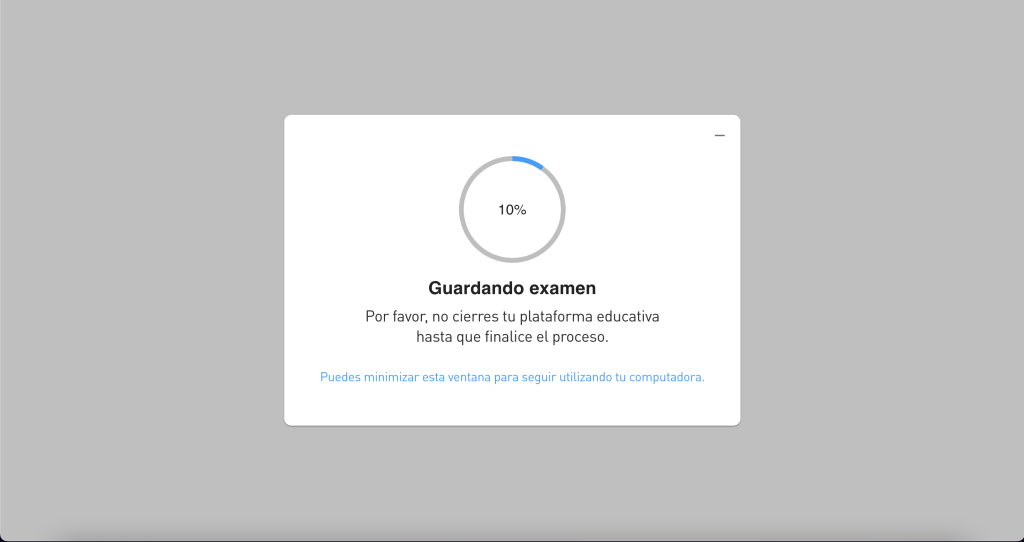
When the exam is over, minimize the screen. Do not close the window until it finishes loading.
Do not close the Klarway window until the upload is complete to make sure your exam has been saved.
Tips for taking exams
Preparing your environment well improves your experience and avoids interruptions during the evaluation.
- Find a comfortable and quiet space.
- Use a plain background behind you when possible.
- Make sure your face is clearly visible on screen, without cropping or unwanted lighting.
- The space should be well lit to get a clear image.
- Plug your PC into power to prevent the battery from draining from camera and microphone use.
- Ask people sharing your space not to use the internet during the exam for the best experience.