macOS · Step-by-step guide
Close open processes
Some background processes can prevent Klarway from working correctly on Mac. Follow these steps to close them using Activity Monitor.
- 1
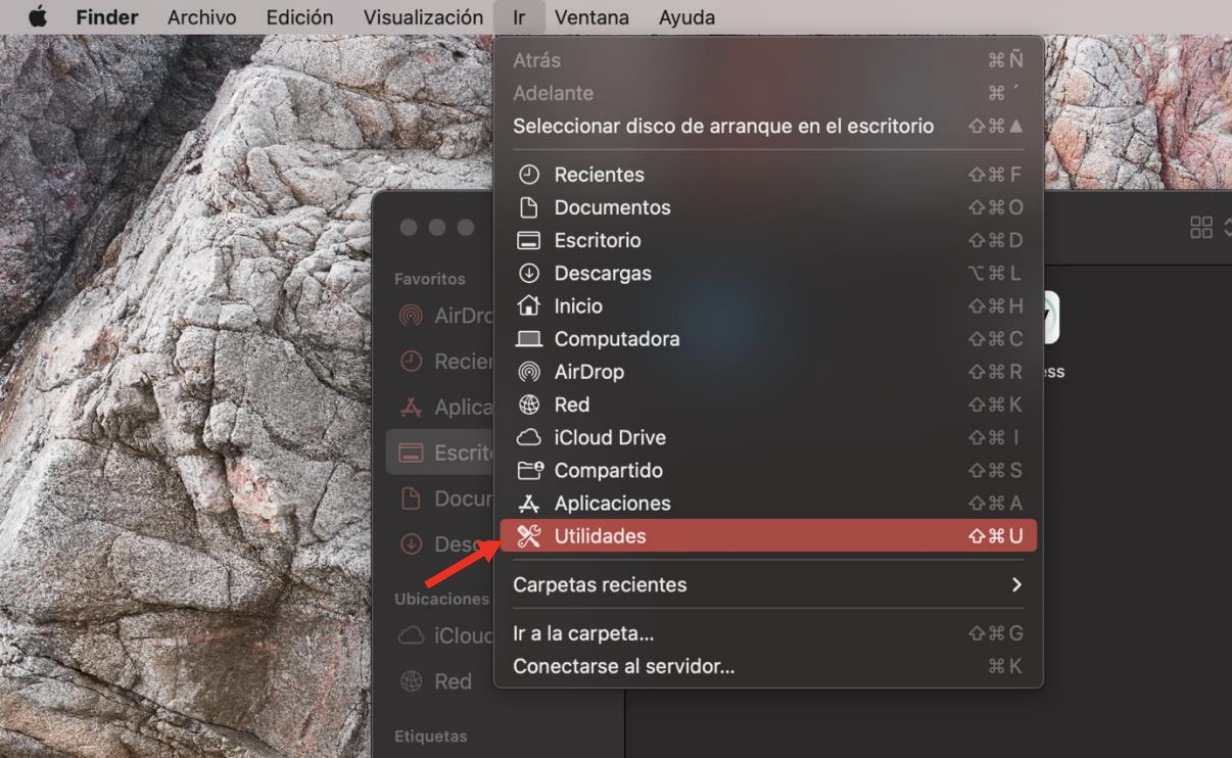
Open Utilities from Finder
In Finder, go to "Go" → "Utilities".
- 2
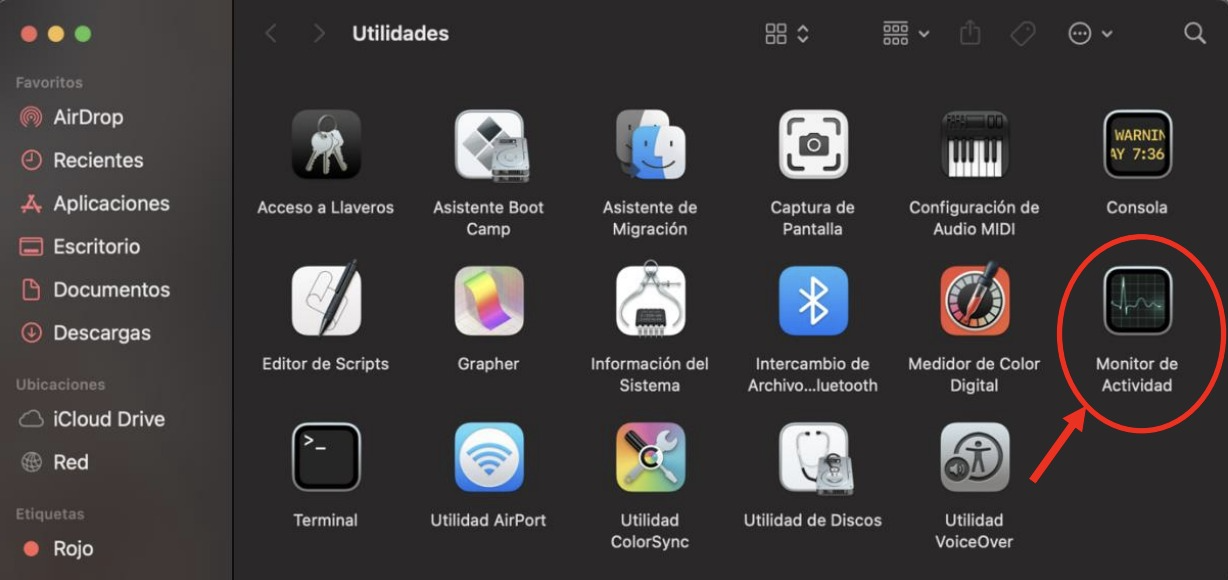
Open Activity Monitor
Find and open "Activity Monitor" inside the Utilities folder.
- 3
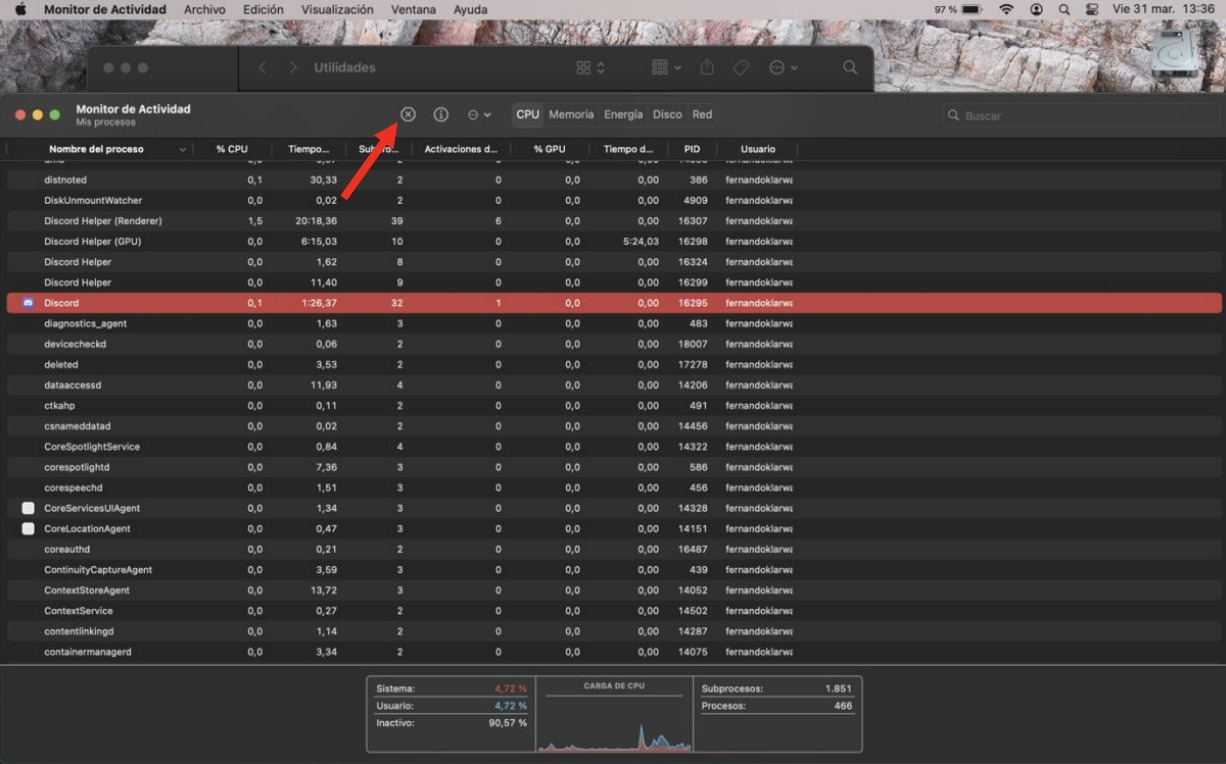
Select the process to close
Locate the process you want to end in the "Activity Monitor" window and click the "×" shown in the image.
- 4
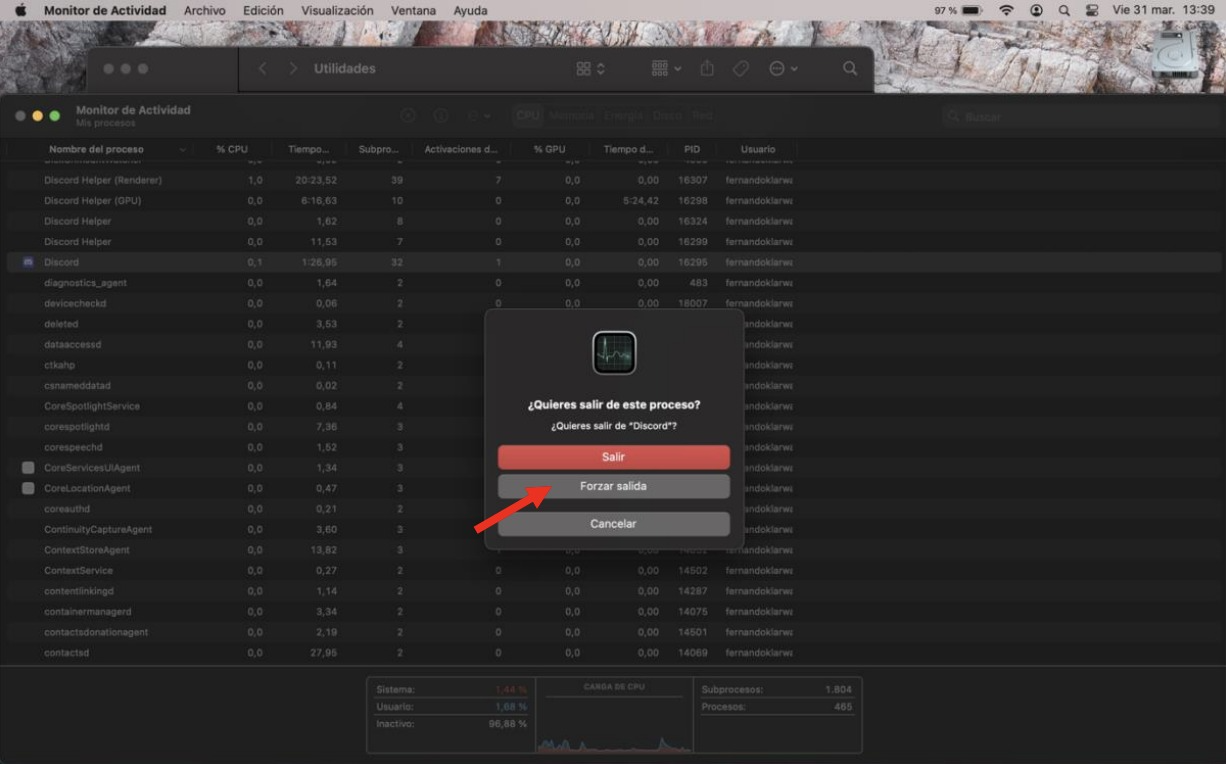
Force Quit
Select "Force Quit" to close the process.